
My Garage Guide
The My Garage feature allows you store multiple vehicles for quick and easy access to viewing their compatible parts.
You can find a vehicle and store it for access later, whether for your own use or to show a customer (you can use the top 'Show Prices' menu to hide prices and use the site as a catalogue).
Ideal for:
- Saving a vehicle: Easily find a vehicle over a long period
- Franchise Dealers: Add your most popular vehicles to create a quick reference list
- Projects / Restorations: Quickly revisit a vehicle as you discover the parts you need
- Personally Owned Vehicle: Stored your vehicle so it's always available to you
You must have an account to use this feature, as it is only available to logged-in users.
Step 1 - Find your vehicle
- First make sure you are signed in, as the vehicle is stored against your login.
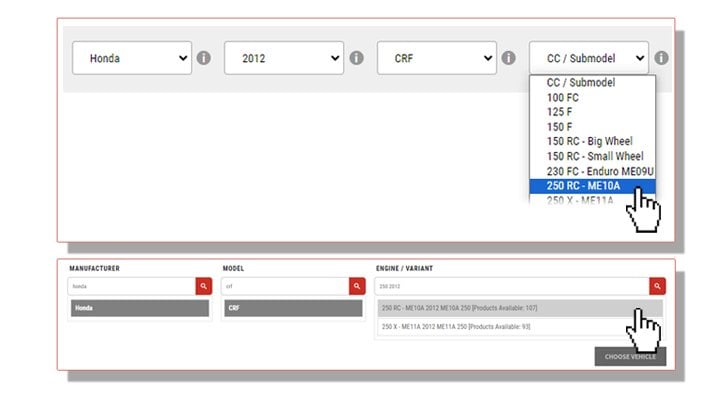
- Select your vehicle from the normal dropdown options, or use the text search found at the top of My Garage page
Step 2 - Add to your Garage
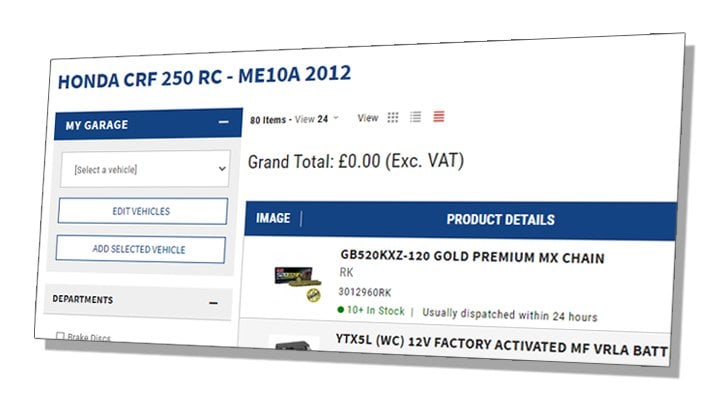
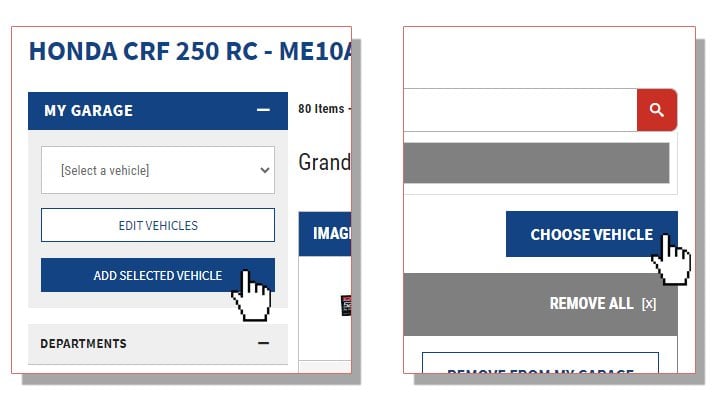
- Once a vehicle is selected you will now see an option under My Garage to 'Add Selected Vehicle' (if it does not already exist in your garage).
- The vehicle will be added to My Garage, from here you can click 'SEE PARTS' to view all the compatible parts.
Alternatively, any vehicle chosen via the search option on the My Garage page is automatically added to your garage.
Now when you browse the site and see the My Garage option, you can select your stored vehicles from My Garage using the dropdown on the left-side filters.
Step 3 - Managing your Garage
SELECTING FROM YOUR GARAGE
There are two methods to select a vehicle from your garage:
- While viewing a category or search results, you can select vehicles from your Garage in the dropdown of the 'My Garage' section in the left-side filters.
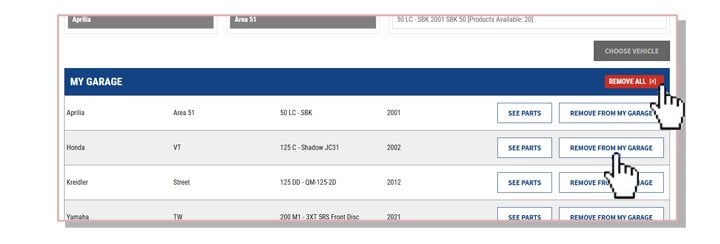
- On the My Garage page select 'SEE PARTS' to view all compatible parts for the vehicle.
REMOVING FROM YOUR GARAGE
- You can also remove any vehicles from your garage by clicking 'EDIT VEHICLES' or navigating to the My Garage page (on the Search option of the Vehicle Selector).
- From the list of vehicles click 'REMOVE FROM MY GARAGE'
Have a long list of vehicles to remove? Simply click 'REMOVAL ALL' in the top-right corner